Chrome 4GB AI download is not about Google secretly turning personal computers into cloud servers. That is main rumor, and it is wrong. Real issue is simpler and more annoying: Chrome can download a large local AI model to some devices so on-device AI features work, and many users feel that happened without a clear consumer-facing opt-in.
As of May 10, 2026, Google’s own Chrome help and admin documentation make three things clear. First, Chrome now supports on-device AI features that rely on local models. Second, Google documents that managed browsers can allow or block those model downloads with policy controls. Third, Chrome also gives regular users a visible On-device AI toggle in settings on supported builds. That means backlash is not really about whether local AI exists. It is about storage cost, consent, visibility, and whether deletion alone stops the model from coming back.
- Chrome 4GB AI download refers to local model files Chrome can fetch for on-device AI features, not Google borrowing your PC as remote compute.
- Users are upset mostly because of storage impact, weak disclosure, and fear that turning features off may not be obvious enough.
- Best first consumer fix is Settings > System > On-device AI and turning it off where available.
- If you delete local model files before blocking re-download, Chrome may fetch them again later.
Table of Contents
- What Chrome 4GB AI Download Actually Is
- What Google Added to Chrome
- Why Users Are Angry
- What Google Can Fairly Claim
- How to Turn Off Chrome 4GB AI Download
- Advanced Ways to Block Re-Download
- How to Check Whether It Is on Your Device
- Bottom Line
- FAQ
- Related Reading
- Sources
What Chrome 4GB AI Download Actually Is
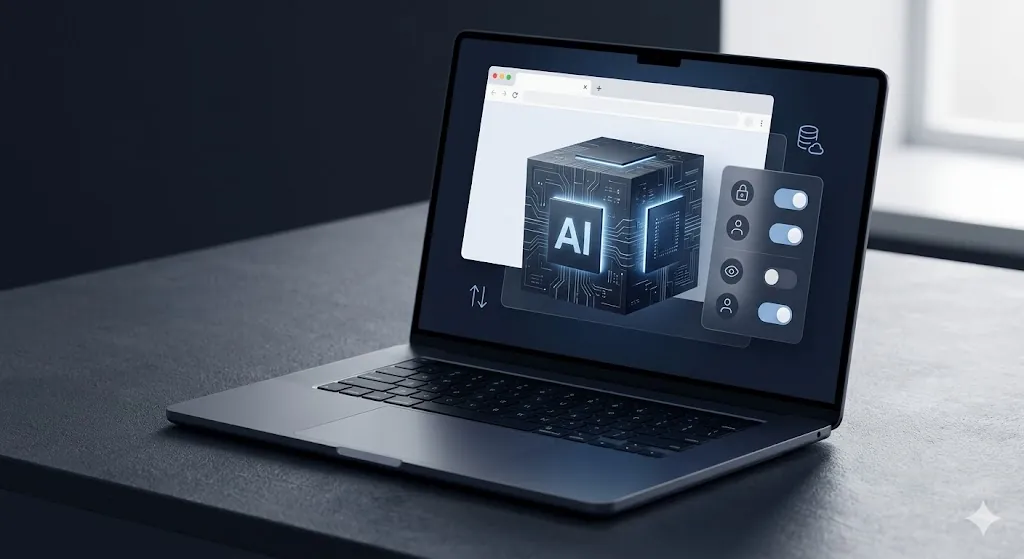
Chrome 4GB AI download is best understood as local model storage for browser-side AI features. Google has been adding on-device AI capability to Chrome so some features can run partly or fully on the device instead of depending on remote processing for every step. In plain English, Chrome is downloading a model because Google wants certain AI features to feel faster, more private, or available without round-tripping everything to cloud systems.
That also means two claims can be true at once. It is true that Google is not using your PC like a public compute node for other people’s prompts. It is also true that many users never wanted several gigabytes of AI assets placed on their machine in the first place. That is why this story blew up. The technical explanation is reasonable. The user experience feels intrusive.
Google’s Chrome help for On-device AI says Chrome can download and store models locally for AI experiences on supported devices. Chrome Enterprise documentation also describes local foundational model settings that let admins choose whether local models are allowed or blocked. So this is not rumor-level reporting anymore. It is documented product behavior.
What Google Added to Chrome
Google did not add one single “mystery AI feature.” It has been building a broader on-device AI layer inside Chrome. Depending on version, platform, and rollout stage, that layer can support features such as writing help, summarization, scam or safety assistance, and other browser actions that benefit from a local model. The local model is infrastructure for those features, not a consumer-facing app by itself.
That distinction matters because many angry users only see storage consumption and background downloading behavior, not a clean explanation of which Chrome features are using that local model. From Google’s side, on-device AI is part of product direction. From the average user’s side, it can feel like a hidden bundle they did not knowingly request.
Google’s Chrome Help page also says Chrome may download these on-device AI models in the background so features stay ready for use. That sentence helps explain why users experienced this as a surprise. Even if background downloading makes engineering sense, it also means many people only discover the feature after storage is already gone.
Google’s public documentation also suggests this system is not fully “set and forget.” Some features can be enabled or disabled in normal settings, while enterprise policy pages show admins can centrally control whether local model downloads happen at all. In other words, Google clearly built controls. The criticism is that the controls have not felt obvious enough for ordinary people.
Why Users Are Angry
Chrome 4GB AI download gets angry reactions for practical reasons, not abstract AI philosophy alone. First, storage is still real money and real friction, especially on smaller SSDs, older laptops, or shared family machines. A browser silently claiming multiple gigabytes is much harder to shrug off than a tiny background component update.
Second, users feel consent language has lagged behind product behavior. Even if a feature is technically documented, normal people judge consent at moment of experience. If large model files appear before a user clearly understands what feature caused them, they read that as weak disclosure. Much of backlash reported across consumer-tech coverage follows this theme: “I might have accepted this, but I was not asked in a way that felt clear.”
Third, there is trust damage from confusion. Many users initially believed Google was using personal devices as shared AI compute. That specific claim does not match the documented local-model explanation, but the misunderstanding spread because the visible symptom was so strange: Chrome taking up a lot more storage for something AI-related that many people never explicitly turned on. Once confusion starts, anger compounds fast.
Fourth, some users worry about persistence. One of the most common complaints in community coverage is that deleting files is not enough if Chrome is still allowed to download the model again later. That concern is fair. Google and Chrome developer documentation both imply models can be downloaded again when needed unless the relevant feature or policy is disabled first.
What Google Can Fairly Claim
Google does have a real case for on-device AI. Running some AI tasks locally can improve latency, reduce repeated cloud dependency, and keep certain data flows closer to the device. For users who actually want browser AI features, local models can make the experience feel more responsive and potentially more private than sending every small assistance task outward.
Google can also fairly say this is part of wider browser evolution, not a one-off stunt. AI features are becoming normal browser surface area in same way password managers, tab groups, translation, and reading mode did. If Chrome believes local inference improves quality or responsiveness, shipping model support is logical from product point of view.
But fair product logic does not automatically mean fair user experience. That is important line. A company can be directionally right about on-device AI and still do poor job on disclosure, storage expectations, or clear off-switches. That is exactly why this topic has such strong click-through power: people are trying to separate reasonable engineering from bad rollout optics.
How to Turn Off Chrome 4GB AI Download
- Turn off On-device AI in Chrome settings. Google currently documents this path as Settings > System > On-device AI. If the toggle is available on your build, switch it off first.
- Turn off Chrome AI features you do not use. In builds that expose them, review Settings > AI innovations and any Gemini in Chrome settings. If you use Gemini in Chrome, Google also documents permissions such as Page content sharing, Microphone, and Precise location that can be turned off separately.
- Restart Chrome. This helps ensure background component states are refreshed after the setting change.
- Delete leftover local model files only after disabling the feature. This is key. Deletion-first cleanup is weaker because the browser may fetch the files again later if on-device AI remains allowed.
- Repeat the check in each active Chrome profile. If more than one profile uses AI features, one profile can keep pulling assets back even after another profile is cleaned up.
This order matters because Google’s own help page says turning the setting back on allows Chrome to download the AI models again. So if your real goal is to stop the model from returning, settings control comes before file cleanup.
Advanced Ways to Block Re-Download
Advanced users and managed-device admins have stronger options than normal consumer settings. Google’s Chrome Enterprise documentation describes local foundational model settings that can be used to allow or block local model downloads. In policy-managed environments, that is better than chasing files manually because it prevents the browser from treating the model as required infrastructure in first place.
On Windows, that usually means applying Chrome managed policy through enterprise policy tooling or local managed-browser policy methods rather than relying only on UI toggles. On macOS and Linux, same logic applies through their managed policy mechanisms. High-level rule stays same across systems: if you need the block to survive updates and user confusion, policy beats cleanup.
If you are not comfortable editing managed browser settings, do not guess your way through random registry advice copied from forums. Safer path is to use Google’s documented Chrome Enterprise policy guidance and only then remove files. This is especially important because wrong policy edits can create browser instability without actually solving re-download behavior.
Practical advanced rule: disable or block local model downloads first, restart Chrome, then remove leftover storage if you still need space back. That sequence is much more reliable than deletion-first cleanup.
How to Check Whether It Is on Your Device
If you want to confirm whether Chrome 4GB AI download happened on your device, start with easiest signals first: available disk space before and after Chrome updates, on-device AI settings being enabled, and whether Chrome has recently exposed new AI features on your build. Those signs are not perfect, but they tell you whether deeper checking is worth time.
More advanced users often inspect Chrome-related storage directories and component data after blocking the feature. Community reporting has pointed to local model files inside Chrome-managed component storage, but path details can vary by operating system and Chrome channel. That is why official policy and settings should come first. File hunting is useful for cleanup, not for first diagnosis.
If you are trying to explain this to family, clients, or coworkers, simplest message is better: if Chrome AI settings are on and several gigabytes appeared unexpectedly, check Chrome’s on-device AI control before you do anything else. That gets most people pointed in right direction without dragging them into developer-level internals.
Bottom Line
Chrome 4GB AI download became a controversy because Google added something technically understandable in a user experience that many people experienced as unclear and invasive. Main fact check is important: this is about local model downloads for browser AI, not Google turning your PC into public cloud hardware. But users are still justified in asking why storage-heavy AI components appeared without clearer consumer expectations.
Best ordinary-user response is straightforward: turn off On-device AI in Chrome where available, turn off AI features you do not use, restart the browser, and only then delete local model files if you need the space. Best advanced-user response is stronger: use Chrome policy controls so the model does not quietly come back after cleanup.
If you want broader context on how AI features keep expanding into mainstream software, AI News This Week: 3 Updates Regular Users Should Know is useful next reading. If you are more interested in choosing AI tools intentionally instead of accepting defaults, AI Tool Comparison: 7 Questions to Ask Before You Pay is better follow-up. If your bigger concern is hidden friction in AI workflows, AI Automation Failures: 7 Reasons Workflows Break Early connects well with this story.
FAQ
What is Chrome 4GB AI download?
Chrome 4GB AI download refers to Chrome downloading large local AI model files so on-device browser AI features can run on supported systems.
Is Chrome 4GB AI download using my computer as a cloud server?
No. Current documentation points to local on-device AI model downloads for Chrome features, not Google borrowing personal PCs to serve other users remotely.
How do I turn off Chrome 4GB AI download?
Best first step is Settings > System > On-device AI and turning it off if that control is available on your Chrome build. Then restart Chrome before you try cleanup.
Will deleting the files stop Chrome 4GB AI download permanently?
Not always. If Chrome still allows on-device AI or local model downloads, the files can return later. Block first, delete second.
Why are users angry about Chrome 4GB AI download?
Biggest reasons are storage use, poor visibility, weak feeling of consent, and fear that Chrome may download the model again after users think they removed it.
Related Reading
- AI News for Teams: 4 Workflow Updates to Watch
- ChatGPT vs Claude vs Gemini: Which One Fits Real Work?
- Simple AI Workflows: 5 Practical Ways to Save Time
Sources
- Google Chrome Help: Manage On-device AI models in Chrome
- Google Chrome Enterprise and Education Help: local foundational model settings
- Google Chrome Enterprise policy list and management guidance
- Google Chrome Help: Gemini in Chrome overview and controls
- Chrome Developers: Prompt API requirements and local model behavior
- Android Authority: Chrome local model controversy and consumer disable reporting