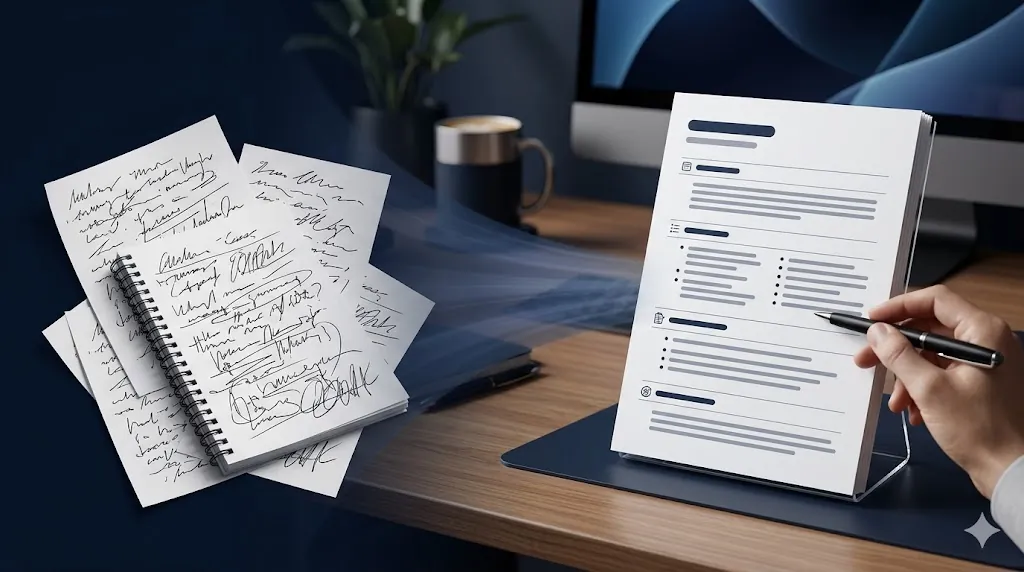
Weekly update prompt is most valuable when a week contains too many meetings, too many half-decisions, and too many scattered notes to trust memory alone. A strong prompt does not merely summarize. It sorts what was decided, what still needs follow-up, what is blocked, and what leadership or teammates actually need to know next.
That structure matches current official guidance from both prompting docs and meeting tools. OpenAI recommends clear instructions, reusable templates, and iteration. Microsoft Teams’ current recap and meeting-notes guidance shows that modern meeting systems already organize notes, transcripts, tasks, and follow-up items together, while also warning that AI-generated outputs should still be verified for accuracy. A useful prompt should follow the same discipline.
- Ask AI to separate facts, decisions, blockers, and next steps.
- Tell it to ignore chatter that does not affect weekly execution.
- Require owner names and dates when notes include them.
- Always add a verification step because meeting AI can miss or distort context.
Table of Contents
- Prompt Template
- What This Prompt Does
- How To Use It
- Worked Example
- What Teams Appreciate and Still Need to Watch Closely
- Editing Cautions
- FAQ
- Source
Prompt Template
Use this when you want a weekly update that reads like an operator wrote it, not like a transcript got compressed.
You are an operations writer turning meeting notes into a weekly update.

Goal:
- Produce a concise, accurate update that helps busy teammates or leaders understand progress, decisions, risks, and next steps.

Input:
- Team or project name: {{team_name}}
- Time period: {{time_period}}
- Audience: {{audience}}
- Desired tone: {{tone}}
- Raw meeting notes or recap text: {{meeting_notes}}

Rules:
1. Use only information supported by notes provided.
2. Separate confirmed decisions from assumptions or unresolved questions.
3. Remove filler, repeated discussion, and side comments that do not change execution.
4. Preserve names, owners, deadlines, and blockers when they appear in notes.
5. If information is missing or ambiguous, list it under "Needs verification" instead of guessing.
6. Keep language plain and skimmable.
7. If multiple meetings conflict, say so clearly.

Output sections:
- One-sentence headline summary
- What moved forward this week
- Decisions made
- Open blockers or risks
- Key follow-ups and owners
- Priorities for next week
- Needs verification

Formatting rules:
- Use short paragraphs or bullets.
- Keep each bullet to one main point.
- Mention dates in exact form when notes include them.
- Do not invent confidence.

Before finalizing:
1. Remove trivia that does not affect project status.
2. Check every named owner and deadline against source notes.
3. Rewrite vague lines like "good discussion" into concrete outcomes or delete them.
What a Weekly Update Prompt Does
This weekly update prompt turns note-heavy meetings into an update people can act on quickly. Instead of flattening everything into one paragraph, it creates separate lanes for progress, decisions, blockers, follow-up, and uncertainty.
That mirrors how current Microsoft meeting tools frame recap data. Teams recap can surface transcripts, notes, tasks, files, and AI-generated follow-up material in one place. But Microsoft also warns that AI-generated content may be inaccurate or incomplete. So the right prompt should not only summarize. It should also expose what still needs human checking.
The prompt is especially helpful for recurring team updates because it prevents a common failure mode: treating attendance and conversation volume as progress. A clear weekly update only keeps items that change what the team should do, know, or watch next.
How To Use a Weekly Update Prompt
Start with one week of notes, not a month of history. If you have several meetings, combine them only when they belong to the same team or project. Otherwise the update becomes broad, repetitive, and hard to trust.
Set the audience explicitly. A leadership update should emphasize movement, risk, and decisions. A team-internal update can include more execution detail and follow-up ownership. The same raw notes produce different useful outputs depending on who will read them.
Do not remove the “Needs verification” section to make the update look more polished. That section is what keeps the prompt honest when notes are incomplete, conflicting, or too informal to support a strong conclusion.
Worked Example
Imagine you have three short meetings about a product launch: a Monday planning sync, a Wednesday design review, and a Friday go-live check. The raw notes are messy, overlapping, and partially informal.
Sample raw notes
Team: Product Launch
Period: May 5 to May 9, 2026
Audience: cross-functional leads
Tone: direct and calm

Notes:
- Monday: landing page copy still under review, but pricing table approved.
- Dev said analytics event naming should be finalized by Thursday.
- Design review: hero image still too busy; simpler option preferred.
- PM wants legal sign-off before scheduling campaign email.
- Friday: onboarding tooltip bug fixed in staging, not yet confirmed in production.
- Sales asked for one-page FAQ before launch.
- No one confirmed final owner for help center article update.
- Tentative launch target still May 14, 2026.
Example weekly update output
Headline summary: Launch prep advanced this week, but legal review, help-center ownership, and final production checks still need closure before the tentative May 14, 2026 launch.
What moved forward this week:
- Pricing table was approved.
- Design direction narrowed toward a simpler hero image.
- Onboarding tooltip bug was fixed in staging.
Decisions made:
- The simpler hero image direction is preferred over the busier version.
- Campaign email scheduling should wait for legal sign-off.
Open blockers or risks:
- Landing page copy is still under review.
- Production confirmation is still missing for the onboarding tooltip fix.
- No confirmed owner yet for the help center article update.
Key follow-ups and owners:
- Finalize analytics event naming by Thursday, owner not clearly stated in notes.
- Secure legal sign-off before campaign email scheduling, owner not clearly stated in notes.
- Create one-page FAQ requested by Sales, owner not clearly stated in notes.
Priorities for next week:
- Close landing page copy review.
- Confirm staging bug fix in production.
- Assign and complete help center article update.
Needs verification:
- Whether May 14, 2026 is still realistic after legal review and production confirmation.
- Who owns the help center article and campaign email dependencies.
This output works because it does not pretend the notes were cleaner than they were. It preserves progress, keeps uncertainty visible, and gives readers a practical next-step view.
What Teams Appreciate and Still Need to Watch Closely
Teams usually appreciate this kind of prompt when it turns scattered meeting notes into an update that can actually be skimmed. The biggest positive reaction comes when the output makes status visible quickly: what moved, what slipped, what is blocked, and what needs attention next. That saves people from reconstructing the story from raw notes or chat fragments.
The weak point appears when the notes are incomplete, politically sensitive, or still unsettled. If ownership is unclear or the team is still debating key decisions, AI can produce a summary that sounds more stable than reality. People often read that as overconfidence, not efficiency. In practice, trust rises when the output preserves uncertainty instead of polishing it away.
That is why a good weekly update prompt should do more than compress information. It should preserve the shape of the work. When the people closest to the project feel accurately represented, everyone else can rely on the summary more safely.
Editing a Weekly Update Prompt
Do not confuse discussion with decision
Meeting notes often contain suggestions, concerns, and open debate. Only mark something as decided if the notes support that conclusion clearly. If not, move it to risk, follow-up, or verification.
Do not let AI invent ownership
If notes mention a task but not an owner, the update should say owner is unclear. This is better than falsely assigning accountability and creating a second communication problem.
Do not hide unresolved conflict
When two meetings point in different directions, the update should name the conflict directly. A smooth-sounding recap that erases disagreement is less useful than a brief update that shows where alignment still breaks down.
Do not pad update with social detail
Lines like “great discussion” or “everyone aligned well” usually do not belong unless they changed scope, timing, or risk. Strip them out. Weekly updates should protect reader attention.
Do not skip verification on AI-generated recap data
Microsoft’s current guidance explicitly warns that AI-generated recap content can be inaccurate or incomplete. If you feed AI notes, transcript summaries, or recap output into another prompt, keep one final human review for names, dates, and true decision status.
FAQ
What is a weekly update prompt?
It is a reusable prompt that turns raw notes into a status update with progress, decisions, blockers, and next steps.
Why include a Needs verification section?
Because messy meeting notes often contain gaps. That section keeps the summary accurate instead of overconfident.
Should I feed transcript text directly into this prompt?
Yes, if needed, but it works better when you first remove clearly irrelevant chatter and combine only meetings from the same project or team.
Who is this format best for?
It works well for team leads, project managers, operations roles, and anyone who has to translate meeting activity into a clear weekly signal.
Who should use a weekly update prompt?
A weekly update prompt is most useful for operators, project leads, founders, and managers who need to turn several meetings into one readable update without hiding uncertainty.